Skip to content

Google Authenticator One-time Password Algorithm in Javascript

I’ve recently setup 2-factor authentication on my Google account.  The new 2nd factor or “thing you have” is a smartphone application which generates 6 digit one-time passwords.

I was a bit surprised when I stumbled on this article Two Factor SSH with Google Authenticator. Turns out the algorithm used to generate the OTPs is an open standard. When you set-up an account in the smartphone app you are storing a key that’s used to create a HMAC of the current time.

You can read the specifics of the algorithm in the TOTP RFC Draft.  I really like the idea that you can use the smartphone app to generate OTPs for your own application.  I’ve implemented the algorithm in javascript on jsfiddle.   Javascript is nice and readable, but please don’t implement your verification client side! :)

A Quick Intro to Facebook’s Auth + Graph API

Update 2011-02-19: Facebook appear to have changed their documentation a bit; I’ve just gone through the article to keep everything in line with the Facebook documentation. The old authorization URLs still work, just hoping to save any confusion.


Another quick blog article just to settle/document some concepts in my own head, and hopefully provide a quick intro to someone out there.

The Facebook Developers site documents all the APIs that you can use to integrate Facebook.  Coming into this with no knowledge of the API can be pretty overwhelming.  This article is a quick working example of authentication and the graph API.  You can read the Facebook references here:  Authentication and Graph API.

The authentication here is the OAuth 2.0, this is the protocol you’d use if you want to write server side code to allow people to log into your site via Facebook, or link existing accounts.  The authentication process also gives you an access token needed to read/write Facebook statuses/photos/etc via the Graph API.

  • First create an application here: http://developers.facebook.com/setup/
  • You will receive an <App ID> and an <App Secret>
  • You can use this to build an ‘authorize’ URL. This is the location you’ll send your users to initiate the authentication, e.g. on a ‘log in with Facebook’ button on your website:
    https://graph.facebook.com/oauth/authorize?client_id=<App ID>&redirect_uri=http://localhost/blah.aspx&scope=offline_access,publish_stream,user_photos,read_stream
    https://www.facebook.com/dialog/oauth?client_id=<App ID>&redirect_uri=http://localhost/blah.aspx&scope=offline_access,publish_stream,user_photos,read_stream

    • redirect_uri – the user will be redirected here after they’ve authorized your application
    • scope – the permissions you are requesting to access, more info: Extended Permissions
    • Check out Dialog Form Factors to display a pop-up or mobile styled authentication page
    • Check out OAuth Dialog‘s display property to display a pop-up or mobile styled authentication page
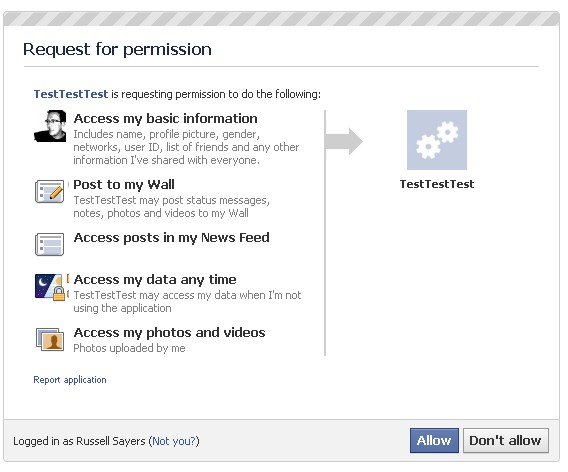
  • The user is displayed a page to authorize the access your application is requesting:
  • The user ‘allows’ your application and gets redirected back to the location you specified in the authorize URL, with a <code> attached:

    http://localhost/blah.aspx?code=<code>

  • Your server now takes the code and exchanges it for an access token, performs a GET against the access_token URL:
    https://graph.facebook.com/oauth/access_token?client_id=<App ID>&redirect_uri=http://localhost/blah.aspx&client_secret=<App Secret>&code=<Code>
  • Facebook responds with an access token:
    access_token=<access token>

Your application is now authorized to read/write data with the permissions of the user via the Graph API.  Hit some URLs to get a JSON response from facebook:

  • The feed: https://graph.facebook.com/me/feed?access_token=<access token>
  • Photo albums: https://graph.facebook.com/me/albums?access_token=<access token>

Even better upload a photo on behalf of the user!  Download cURL for your platform: cURL download.  Run cURL from a command-line:

curl.exe
-F access_token=<access token>
-F source=@IMG_2693.jpg
-F "message=Testing yet again!" https://graph.facebook.com/me/photos

The -F arguments build a form POST, the @ attaches the file as a file upload, don’t forget to escape any pipe characters in your access_token with a caret.

So that’s a quick intro to what is possible via the graph and authentication APIs. I see plenty of other APIs on the developer site I haven’t tinkered with yet. If you see anything interesting leave me a comment, and I might pull it apart in a new blog post!
Amazon Mechanical Turk Quick Intro

I’ve read a bit about Amazon’s Mechanical Turk, and it sounds like a very interesting technology. It is a market place to put up little tasks for workers around the world to complete, i.e tag a photo, categorize this dress, find an email for the business, etc. Now I’m wondering what interface you have to create tasks, does it work like a facebook app where I host the logic? Finally got around to reading up on it, so here’s the quick intro for the techie that doesn’t feel like reading the manual. :)

Creating some tasks is very simple, you just create a HTML template with placeholders like this: ${placeholder}, and some HTML elements. Upload a CSV to ‘mail merge’ with the template, and workers get displayed 1 task for each row in the CSV. Any data entered into the form fields are saved and available for download.

I came up with an idea for mturk tasks while I was testing an ipad magazine app at work. The app contains bitmaps exported for the PDF files to create the magazines, so there is no metadata to create hotspots on the index page. The idea: put the index pages up on mturk for workers to draw the hotspots. The workers only interact with the HTML in the template, so it is an option to write some javascript to draw the rectangle and store the co-ordinates in hidden form fields.

I want to take 1 index page, and get a rectangle for each page reference. I’m not really using mturk to its fullest if I give 1 worker a JPG, and have the worker draw multiple rectangles. It would be better to “scale” the task over multiple workers. So instead I type all the page numbers into the CSV (this could also be another task!), and each “task” displays the worker a single page number, and asks them to draw the rectangle. Slight problem, what if a page number is listed more than once? Now I have three columns in my csv:

  • pageNumber – the page number I want the workers to find
  • pageCount – the number of times the page appears
  • pageUrl – the location of the scanned page

If a page appears multiple times I give the worker multiple rectangles to highlight the page.

So what’s it look like? The ‘Design’ tab is used to set up the template

I upload the CSV, and the task appears for workers to complete.

I get a UI of the results in real time, the tasks complete pretty quickly. I can click the results button and see a grid of the results. You can also reject the results you see in the grid, and put the task back to the workers for completion.

See the rectangles drawn on the index page:

There is a bit of an overlap on the rectangles, so I wrote a bit of code to ‘split the difference’ of any overlap. See the results here.

Further reading:

  1. Creating a HIT Template – a good reference from Amazon on the workings of a HIT created in the UI.
  2. API reference – it is possible to host the IFRAME yourself using an ExternalQuestion

LINQ mucking

Another quick one! Forcing myself to learn LINQ, so I decided to rewrite some looping code. The original code; simple enough, loop thru all the daylight adjustments for a timezone and build a list of date/time and offset.

List<TransitionOffset> transitions = new List<TransitionOffset>();
foreach (TimeZoneInfo.AdjustmentRule adj in TimeZoneInfo.FindSystemTimeZoneById("AUS Eastern Standard Time").GetAdjustmentRules())
{
    if (adj.DateEnd.Year >= 2010)
    {
        for (int year = 2010; year <= 2015; year++)
        {
            transitions.Add(new TransitionOffset
            {
                Transition = GetDateTime(year, adj.DaylightTransitionStart),
                Offset = adj.DaylightDelta.TotalHours
            });
            transitions.Add(new TransitionOffset
            {
                Transition = GetDateTime(year, adj.DaylightTransitionEnd),
                Offset = 0
            });

        }
    }
}
transitions = transitions.OrderBy(t => t.Transition).ToList();

..and again in LINQ

var zoneAdjs = from adj in TimeZoneInfo.FindSystemTimeZoneById("AUS Eastern Standard Time").GetAdjustmentRules()
                where adj.DateEnd.Year >= 2010
                from year in Enumerable.Range(2010, 6)
                let trans = new[] {
                                        new { Transition = GetDateTime(year, adj.DaylightTransitionEnd),
                                            Offset = 0.0},
                                        new { Transition = GetDateTime(year, adj.DaylightTransitionStart),
                                        Offset = adj.DaylightDelta.TotalHours}
                                    }
                from tran in trans
                orderby tran.Transition
                select tran;

Any more readable / maintainable than the non-LINQ version? It definitely took longer to write while I’m a LINQ “newbie”. The most complicated bit was pulling the DaylightTransitionEnd and DaylightTransitionStart into one collection. This collection is only ever used to create JSON, so I like being able to serialize anonymous types from LINQ, and skip creating classes that are only used to serialize.